
iPhone · 151 exercises
Train the machine. Ignore the phone.
You walk up to a machine you half know how to use, then spend the rest between sets in your feed. LiftLock fixes both: it tells you exactly how the machine works and what it trains, then blocks every other app on your phone until your session is done.


Scan to download on iOSPoint your iPhone camera here.


Pick the machines. Train them. Nothing else gets in.
Choose
Browse by body part or search. Every entry shows setup, the rep, and the mistakes people make.
Plan
Sets, reps, weight and rest for each one. Reorder them into the order you'll actually do them.
Train
One exercise at a time, a rest timer between sets, and every other app blocked.
Look back
A year of training days, sets per week, and how your work is split across your body.
151 exercises, written for someone standing in front of one.
Machines, cables, barbells, dumbbells and bodyweight. Not a wall of text: for each one, how to set it up, what the rep actually is, and the specific thing that gets people hurt on it.
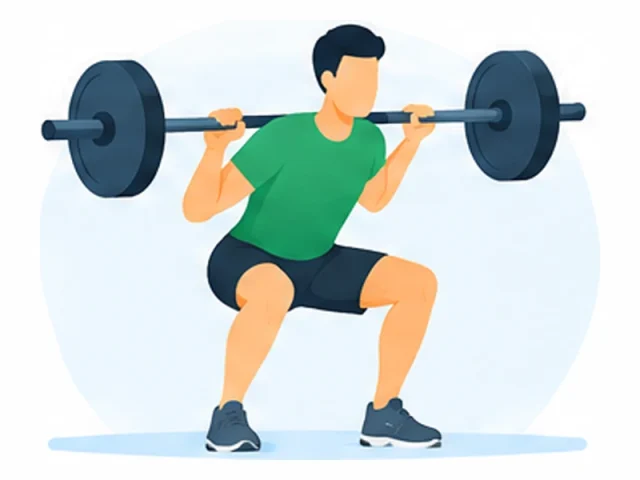
Barbell Back Squat
QUADS · GLUTES
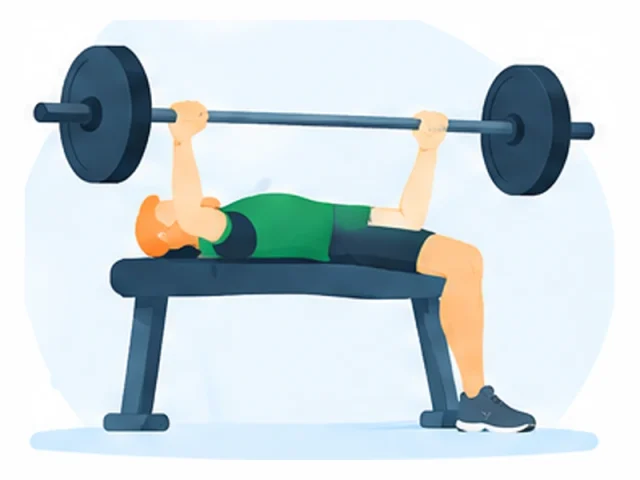
Barbell Bench Press
CHEST
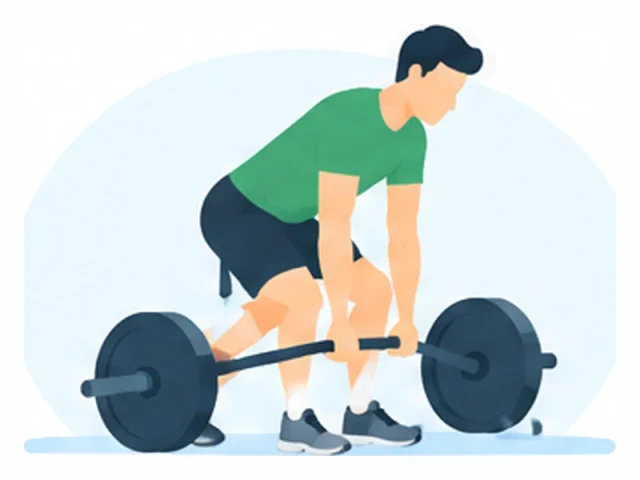
Deadlift
LOWER BACK · GLUTES
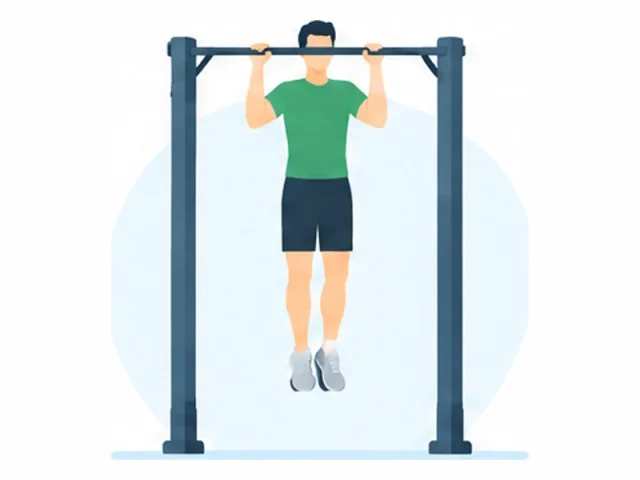
Chin-Up
LATS · BICEPS
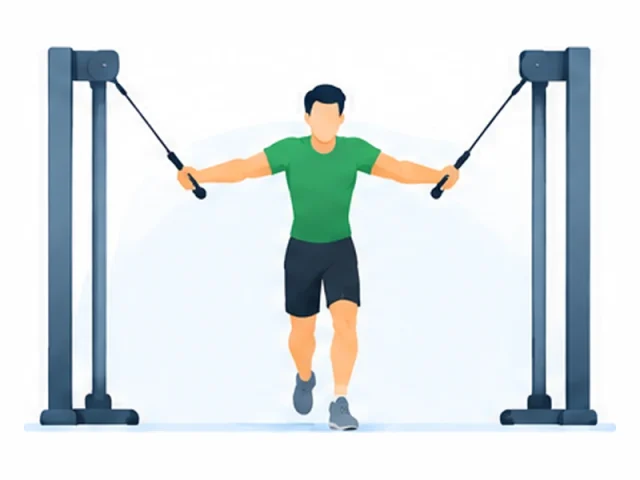
Cable Crossover
CHEST
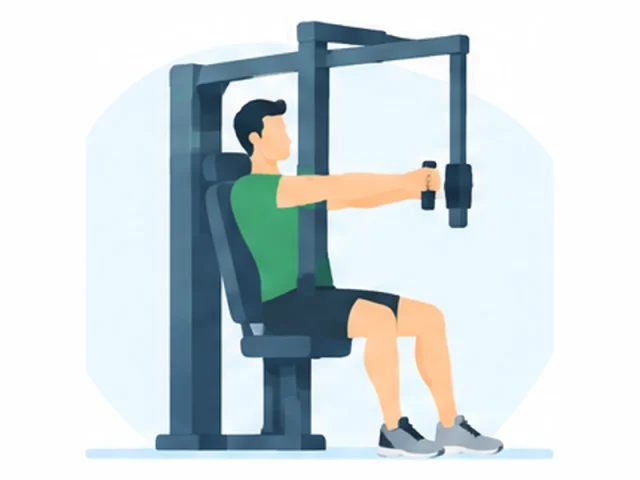
Chest Press Machine
CHEST
What it blocks, and what no app can block.
Plenty of focus apps imply they can trap you. None can, and neither can this one. Here is the actual line.
What LiftLock controls
- Blocks every other app for the length of your session, using Apple's own Screen Time.
- Hides the home indicator and makes the swipe-away gesture take two attempts, not one.
- Detects Guided Access, and walks you through turning it on if you want the phone truly sealed.
- Unblocks everything the moment you finish, or if you end early.
What iOS doesn't allow
- Trap you inside the app. Only a company- or school-managed device can be locked to one app.
- Block the App Switcher, unless you turn on Guided Access.
- Stop you removing the block. Screen Time restrictions can always be lifted in Settings.
- See which apps you have or which ones you opened. Screen Time hands us opaque tokens, never names.
Emergency calls, Medical ID and every accessibility feature keep working throughout. Nothing here touches them.
A year of training, at a glance.
Every training day on one grid, shaded by how hard you went — and scaled to your own hardest session, so it means something whether you do six sets or twenty.
Underneath: sets per week for the last twelve weeks, and how your training splits across chest and back, shoulders, arms, core and legs. Useful for spotting the body part you have quietly stopped training.
All of it computed on your phone from workouts stored on your phone. None of it is uploaded.

Before you ask.
Can it really stop me leaving the app?
Not on its own, and any app that says otherwise is describing something else. iOS only lets an app lock itself to the screen on devices managed by a company or school. What LiftLock does is the reverse: it blocks every other app, so leaving gets you a blocked screen and nothing to do. If you want the phone properly sealed, triple-click the side button for Guided Access — LiftLock explains how, and shows you when it's on.
Does it know which apps I use?
No. Screen Time hands apps opaque tokens, never names or bundle identifiers. LiftLock blocks whole categories rather than a list, so it never learns anything about what is on your phone. It also can't see what you opened, or tried to.
What happens if I need my phone in an emergency?
Emergency calls, Medical ID, Emergency SOS and every accessibility feature keep working. Nothing LiftLock does touches them, and you can end a workout at any time with one tap, which unblocks everything immediately.
Where is my training history kept?
On your phone, in a file only LiftLock can read. It is never uploaded, and we never see it. If you sign in, only your settings and profile picture sync — not your workouts.
Do I need an account?
No. Everything works signed out. An account is only there so your settings and profile picture follow you to a second device, and you can delete it from inside the app whenever you want.
Is the exercise advice from a trainer?
It's general instruction on how each machine works, written to be accurate and specific about common mistakes. It is not personal coaching and not medical advice. If you have an injury or a condition, talk to a professional before training.